

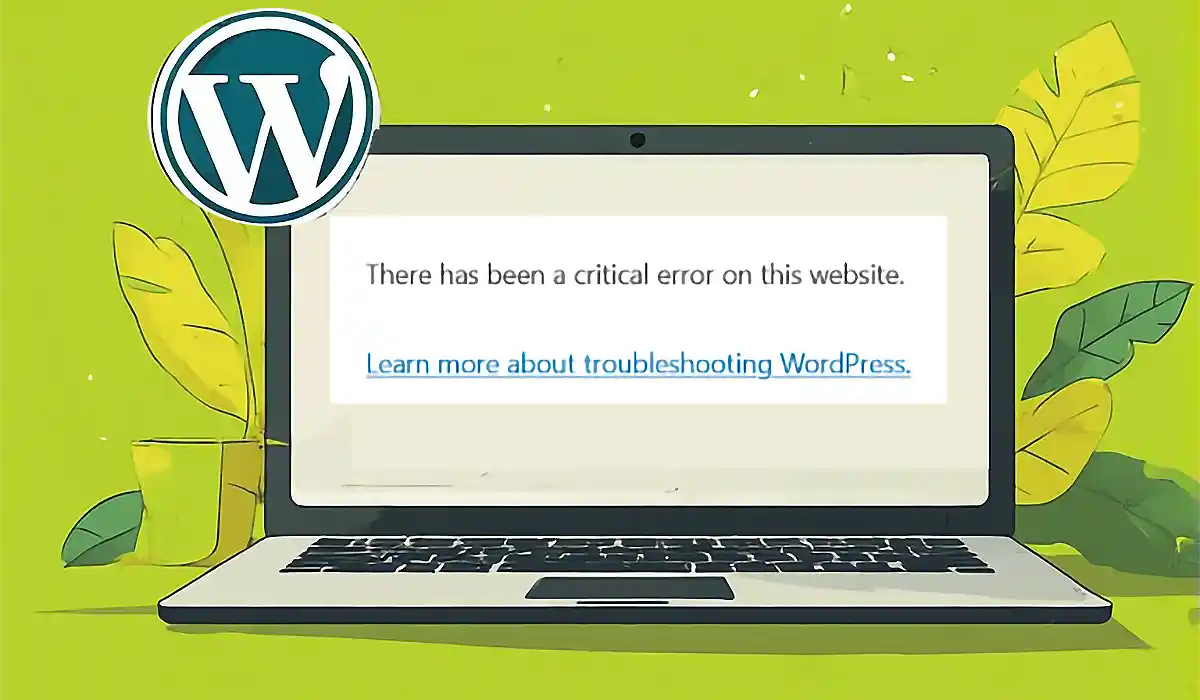
What is the WordPress Critical Error and how do you fix it fast?
The WordPress critical error is a fatal issue that prevents your website from loading, often displaying a message like “There has been a critical error on this website.” It usually occurs due to plugin conflicts, theme issues, PHP errors, or server limitations. The fastest way to fix it involves enabling debug mode, disabling plugins, switching to a default theme, and checking error logs. Once identified, you can resolve the root cause by updating, replacing, or correcting faulty code. This guide goes deeper, showing not only how to fix it but how to prevent it and strengthen your site for long-term stability and SEO performance.
Why does the WordPress critical error happen?
Understanding the cause is key to solving the problem permanently.
Most common triggers
- Plugin conflicts or corrupted plugins
- Theme compatibility issues
- PHP version incompatibility
- Memory limit exhaustion
- Corrupted core WordPress files
- Database connection issues
- Custom code errors in functions.php
Technical explanation
This error is typically caused by a PHP fatal error, which stops execution completely. Unlike warnings, fatal errors crash the site entirely.
How to fix WordPress critical error step by step (Beginner to advanced)
Follow this exact order to isolate and fix the issue efficiently.
1. Enable WordPress Debug Mode
Edit your wp-config.php file:
define('WP_DEBUG', true);
define('WP_DEBUG_LOG', true);
define('WP_DEBUG_DISPLAY', true);
This reveals the exact error causing the crash. Read WordPress Official documentation
2. Disable all plugins (most common fix)
Access your site via FTP or hosting panel and rename:
/wp-content/plugins → plugins-disabled
If the site works, a plugin is the issue.
Next step:
Rename back and activate plugins one by one.
3. Switch to a default theme
Rename your theme folder:
/wp-content/themes/your-theme → your-theme-disabled
WordPress will automatically switch to a default theme.
4. Increase PHP memory limit
Add this to wp-config.php:
define('WP_MEMORY_LIMIT', '256M');
5. Check error logs
Look inside:
/wp-content/debug.log- Hosting control panel logs
6. Reinstall WordPress core files
Download fresh WordPress files and replace:
wp-adminwp-includes
7. Fix PHP version compatibility
Ensure your hosting uses:
- PHP 8.0 or 8.1 (recommended)
How to fix critical error when locked out of admin panel
Use Recovery Mode
WordPress sends an email with a recovery link.
Manual access methods
- FTP (FileZilla)
- cPanel File Manager
- SSH (advanced users)
Plugin vs Theme vs Server Issues (Quick Comparison Table)
| Issue Type | Symptoms | Fix Difficulty | Solution Approach |
|---|---|---|---|
| Plugin Conflict | Error after installing plugin | Easy | Disable plugins |
| Theme Issue | Layout breaks or site crashes | Medium | Switch theme |
| Server Error | Random crashes, memory issues | Hard | Upgrade hosting |
| PHP Error | White screen or critical message | Medium | Debug & fix code |
How does this error affect SEO and rankings?
A critical error directly impacts SEO:
- Site becomes inaccessible → Google deindexes pages
- Increased bounce rate
- Loss of trust signals
- Crawl errors in Google Search Console
SEO recovery tips
- Fix error quickly
- Request reindexing
- Monitor uptime
- Use caching/CDN after fix
How to prevent WordPress critical errors (Best practices)
Development & maintenance
- Always test updates on staging site
- Avoid nulled or poorly coded plugins
- Keep WordPress core, themes, and plugins updated
Security & stability
- Use reliable hosting
- Install security plugins
- Schedule backups
Performance optimization
- Use caching tools
- Optimize database regularly
- Monitor PHP errors
Advanced debugging techniques for developers
Use error logs effectively
- Analyze stack traces
- Identify file paths causing issues
Debug plugins with isolation
- Use staging environments
- Enable query monitor tools
Common code issues
- Undefined functions
- Syntax errors
- Deprecated functions
Example of a critical error fix
A business website crashed after installing a new plugin. Debug logs revealed a function conflict. Disabling the plugin restored the site instantly. Replacing it with a compatible alternative resolved the issue permanently without affecting SEO rankings.
FAQ: WordPress Critical Error
Most cases come from plugin conflicts, theme issues, or PHP errors. Incorrect updates or incompatible versions are major triggers.
Yes, many fixes like disabling plugins or switching themes require no coding and solve most cases quickly.
Your hosting email configuration may be incorrect. Check spam folders or use SMTP plugins for reliable delivery.
No, it only prevents loading. Your files and database remain safe unless manually altered.
Basic issues can be resolved within minutes, while complex debugging may take a few hours.
Temporary impact is possible, but quick fixes and reindexing usually restore rankings.
Only if core files are corrupted. Avoid full reinstall unless necessary.
It is a related issue where the screen goes blank due to PHP errors, often linked to critical errors.
Why choose Ashfaq Digital for WordPress error fixes?
Fixing a critical error is not just about restoring your website. It is about protecting your rankings, user trust, and business revenue.
What sets us apart
- Deep debugging expertise across themes, plugins, and server environments
- SEO-focused fixes to prevent ranking loss
- Fast turnaround with minimal downtime
- Performance optimization after recovery
Advantages you get
- Fully stable and optimized website
- Improved loading speed and security
- Long-term prevention strategies
- Technical support you can rely on
Get your WordPress site fixed today
A critical error can cost traffic, leads, and revenue every minute your site is down. Get expert help now and restore your website quickly and safely.