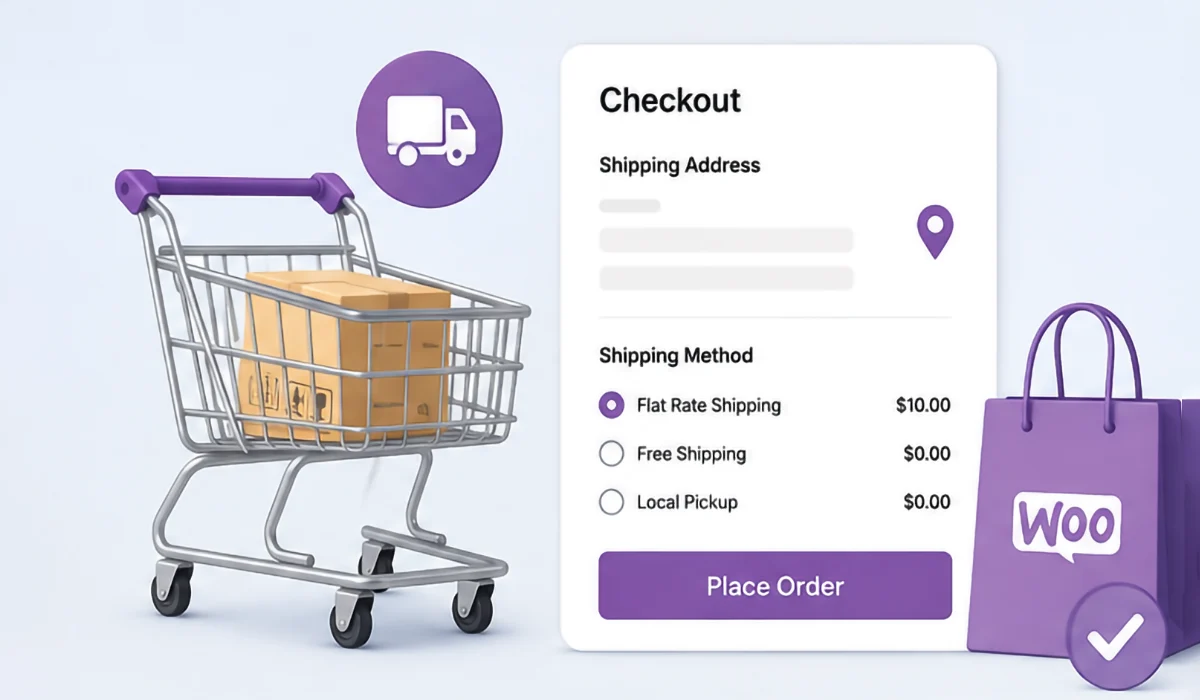
If WooCommerce checkout doesn’t show correct shipping cost, the issue usually isn’t the checkout page itself. In most cases, something earlier in the shipping calculation process is preventing WooCommerce from displaying the correct amount. This could be an incorrect shipping zone, an incomplete customer address, cached checkout data, shipping class settings, tax configuration, a plugin conflict, or custom code overriding the calculated rates.
The fastest way to fix the problem is to identify where the calculation fails instead of randomly changing shipping settings. Start by checking whether the shipping cost is correct in the cart. If the cart displays the correct amount but checkout doesn’t, the issue is usually related to checkout refresh, AJAX, JavaScript, or caching. If both pages show the wrong shipping cost, focus on your shipping configuration before investigating themes or plugins.
Many store owners spend hours changing shipping methods when the real issue is a hidden plugin conflict or a simple configuration mistake. Following a structured troubleshooting process helps you find the real cause much faster.
Why WooCommerce Checkout Doesn’t Show Correct Shipping Cost
WooCommerce doesn’t calculate shipping only once. Every time a customer changes their country, state, postcode, shipping method, coupon, cart quantity, or product variation, WooCommerce recalculates the shipping cost before displaying the updated total.
Behind the scenes, every shipping calculation follows a series of steps:
| Shipping Stage | What WooCommerce Checks |
|---|---|
| Customer Address | Country, state, city and postcode |
| Shipping Zone | Which zone matches the destination |
| Shipping Method | Flat rate, free shipping, local pickup or live carrier |
| Shipping Classes | Product-specific shipping rules |
| Taxes | Shipping tax class and tax settings |
| Discounts | Coupons or promotional shipping rules |
| Plugins & Custom Code | Extensions modifying shipping calculations |
| Checkout Refresh | AJAX updates the displayed totals |
If any stage returns incorrect information, the shipping cost displayed at checkout will also be incorrect. Understanding this process makes troubleshooting much easier because you’re identifying where the calculation breaks instead of guessing.
Compare the Cart and Checkout Before Changing Anything
Before editing shipping settings, compare the shipping cost shown in the cart with the amount displayed during checkout.
| Cart | Checkout | Most Likely Cause |
|---|---|---|
| Correct | Incorrect | Checkout refresh, AJAX, JavaScript or caching |
| Incorrect | Incorrect | Shipping zones, shipping methods or configuration |
| No Shipping | Shipping Appears | Address detection issue |
| Different Rates | Different Rates | Plugin conflict or custom code |
This simple comparison immediately narrows your troubleshooting. If the cart is already calculating the wrong amount, there’s little point investigating checkout scripts because the problem occurred much earlier in the process.
Verify Your Shipping Zones
Incorrect shipping zones are the most common reason WooCommerce displays the wrong shipping cost.
Go to:
WooCommerce → Settings → Shipping → Shipping Zones
Check the following:
- Does the customer’s address match the intended shipping zone?
- Are multiple zones covering the same destination?
- Are postcode or region rules configured correctly?
- Is the correct shipping method assigned to that zone?
One detail many store owners overlook is that WooCommerce checks shipping zones from top to bottom. As soon as it finds the first matching zone, it stops searching.
Example
Suppose your shipping zones are arranged like this:
| Zone Order | Coverage |
|---|---|
| Zone 1 | United Kingdom |
| Zone 2 | London |
Customers in London will always match the United Kingdom zone first because it appears above the London-specific zone. The London shipping rules will never be used, making it appear as though checkout is calculating the wrong shipping cost when it’s actually matching the wrong shipping zone.
If you use postcode-based shipping, double-check that postcode ranges don’t overlap. Overlapping rules can produce inconsistent shipping prices that only affect certain customers, making the issue difficult to reproduce.
Check the Customer’s Shipping Address
WooCommerce relies entirely on the customer’s shipping address when calculating rates. Missing or incomplete information often causes WooCommerce to load default shipping methods or estimate shipping instead of calculating the correct cost.
Verify that customers have entered:
- Country
- State or county
- City (if required)
- Postcode or ZIP code
Many live carrier integrations require a valid postcode before requesting shipping rates. Others estimate shipping using only the destination country, which explains why two customers ordering identical products may see different shipping costs.
If customers report inconsistent shipping charges, always test using the exact address they entered rather than a nearby postcode.
Review Shipping Classes
Shipping classes don’t calculate shipping themselves they tell your shipping methods how to calculate shipping for different products.
For example, your store may include:
- Standard products
- Heavy items
- Fragile goods
- Oversized furniture
A flat-rate shipping method could charge £8 for standard products but £25 for heavy items. If a product accidentally loses its shipping class during editing or after a bulk import, WooCommerce quietly falls back to the default shipping rate.
The checkout page appears to work normally, but the shipping cost becomes much lower or higher than expected.
Review affected products by navigating to:
Products → Edit Product → Shipping
Confirm that every product has the correct shipping class assigned. This is especially important after importing products, restoring backups, or migrating your store.
Check Flat Rate Shipping Formulas
WooCommerce Flat Rate Shipping supports formulas, allowing shipping costs to change based on quantity, fees or order totals.
Examples include:
10 + (2 * [qty])
or
[fee percent="5" min_fee="8"]
Although these formulas are powerful, even a small typo can produce incorrect shipping costs. A missing bracket, incorrect operator or invalid formula may not generate an error it can simply calculate an unexpected amount.
If you’ve recently modified a shipping formula, temporarily replace it with a fixed value such as £10. If the shipping cost immediately becomes correct, you’ve identified the source of the problem.
Checkout Doesn’t Update After the Address Changes
If customers change their postcode or country but the shipping price doesn’t update, the checkout page is probably failing to refresh.
Common symptoms include:
- Shipping remains unchanged after updating the address.
- The loading spinner never appears.
- Order totals refresh but shipping stays the same.
- Shipping only updates after manually refreshing the page.
This usually indicates one of the following issues:
- JavaScript errors
- Failed AJAX requests
- Cached checkout fragments
- Theme compatibility problems
- Plugin conflicts
Open your browser’s Developer Tools by pressing F12, then switch to the Console tab. If JavaScript errors appear when changing the shipping address, resolve those first. Even an unrelated JavaScript error can prevent WooCommerce from sending the update_order_review AJAX request responsible for recalculating shipping.
Next, open the Network tab and monitor AJAX requests while changing the postcode. If the request returns a 403, 404 or 500 error, the issue may be caused by a security plugin, server configuration or custom code blocking WooCommerce’s checkout refresh.
This is one of the most overlooked causes of incorrect shipping costs because the calculation itself is correct the browser simply never receives the updated result.
Cache Can Freeze Shipping Prices
Caching improves website performance, but checkout pages are different because shipping costs depend on live customer information.
If the checkout page is cached, one visitor may see shipping rates calculated for another customer or continue seeing outdated shipping prices after changing their address.
If you’re using optimisation plugins or server-level caching, make sure the following pages are excluded:
- Cart
- Checkout
- My Account
It’s also worth checking whether you’re using:
- Object caching
- Fragment caching
- Cloudflare APO
- LiteSpeed ESI
- Reverse proxy or server caching
Temporarily disable caching and test the checkout again. If the shipping cost updates correctly, you’ve confirmed that cached content is preventing WooCommerce from recalculating shipping.
Remember that WooCommerce stores some shipping information in the customer’s session for performance, but this is different from full-page caching. Dynamic checkout pages should never be served from a static cache because every customer may have a different destination, shipping method and order total.
Proper cache exclusions are one of the simplest yet most effective ways to prevent shipping inconsistencies, especially on high-traffic WooCommerce stores.
Review Shipping Tax Settings
Sometimes the shipping calculation is correct, but the amount displayed at checkout appears wrong because of tax settings. This often happens when shipping is taxed differently from products or when prices are displayed inconsistently throughout the store.
Go to:
WooCommerce → Settings → Tax
Review these settings carefully:
- Shipping tax class
- Prices entered with tax
- Display prices in the shop
- Display prices during cart and checkout
For example, if your shipping charge is £15 and shipping tax is 10%, WooCommerce may display £16.50 at checkout. Customers expecting to pay £15 often assume shipping has been calculated incorrectly when the additional amount is simply tax.
The most important thing is consistency. If product prices are shown including tax, shipping should follow the same approach to avoid confusing customers.
Check Whether Coupons Affect Shipping
Coupons don’t always reduce product prices. Depending on your WooCommerce settings or installed extensions, they can also modify shipping rates.
Ask yourself:
- Does the issue only happen after applying a coupon?
- Does removing the coupon restore the correct shipping cost?
- Is free shipping linked to coupon usage?
- Does the coupon reduce the order below a free shipping threshold?
Many shipping extensions include conditions based on:
- Minimum order value
- Product category
- Cart weight
- Customer role
- Order quantity
A coupon can unintentionally change one of these conditions, causing WooCommerce to switch to a different shipping method. In many cases, shipping is working exactly as configured the customer simply no longer qualifies for the previous shipping rate.
Test Using the Storefront Theme
Your theme doesn’t usually calculate shipping, but it controls how checkout information is displayed and updated.
Switch temporarily to the Storefront theme and repeat your checkout test.
If the shipping cost immediately becomes correct, the problem is likely caused by:
- Custom checkout templates
- Theme JavaScript
- Theme compatibility issues
- Outdated WooCommerce template overrides
This quick test helps separate WooCommerce issues from theme-related problems and can save hours of unnecessary troubleshooting.
Check for Plugin Conflicts
Plugin conflicts are one of the most common reasons WooCommerce checkout displays incorrect shipping costs.
Many plugins can modify shipping calculations, including:
- Shipping extensions
- Discount plugins
- Membership plugins
- Wholesale pricing plugins
- Multi-currency plugins
- Multi-language plugins
- Product bundle plugins
- Subscription plugins
- Custom checkout plugins
Some common signs of a plugin conflict include:
- Shipping changed after installing or updating a plugin.
- The cart displays one shipping cost while checkout shows another.
- Logged-in users receive different shipping rates from guest customers.
- Shipping becomes correct after disabling a plugin.
The fastest way to isolate the problem is to deactivate all non-essential plugins except WooCommerce. Test the checkout, then reactivate each plugin individually until the incorrect shipping cost returns.
This process quickly identifies which extension is altering WooCommerce’s calculated shipping rates.
Verify Live Carrier Shipping Rates
If you’re using live carrier integrations such as UPS, FedEx, USPS, DHL or Australia Post, WooCommerce may not be responsible for the incorrect shipping cost.
Carrier integrations depend on accurate product information, including:
- Product weight
- Package dimensions
- Declared value
- Shipping destination
- Carrier API response
If any required information is missing, the shipping plugin may return an estimated or fallback rate instead of an accurate quote.
Review several products and confirm that:
- Every product has a weight assigned.
- Length, width and height are realistic.
- Measurement units match the shipping plugin’s settings.
- Package sizes reflect the products being shipped.
A single product without a weight can produce incorrect shipping quotes for the entire order.
Review Table Rate Shipping Rules
Table Rate Shipping provides advanced flexibility but also introduces opportunities for configuration mistakes.
Consider these rules:
| Cart Weight | Shipping Cost |
|---|---|
| 0–5 kg | £8 |
| 5–10 kg | £12 |
| Over 10 kg | £20 |
At first glance these rules seem correct, but what happens when the cart weighs exactly 5 kg?
Some plugins include the upper limit in the first rule, while others apply the second rule. This can create inconsistent shipping charges that only affect a small percentage of customers.
When creating table rate rules, avoid overlapping weight ranges and leave clear boundaries so every possible order matches only one shipping rule.
Check Custom Code
Many WooCommerce stores contain custom code added months or even years earlier.
These snippets may be located in:
functions.php- A custom plugin
- The Code Snippets plugin
- MU (Must Use) plugins
Developers often use WooCommerce hooks to customise shipping behaviour. After WooCommerce updates, these snippets can unexpectedly override shipping calculations or apply outdated logic.
If your store includes custom development, review any recent code changes before modifying WooCommerce settings. A few lines of PHP can replace every shipping rate WooCommerce calculates.
Enable WooCommerce Shipping Debug Mode
WooCommerce includes a built-in debugging feature that helps identify shipping zone problems.
Navigate to:
WooCommerce → Settings → Shipping
Enable Debug Mode.
Instead of relying on cached shipping zones, WooCommerce displays which shipping zone matches the customer’s address.
This feature is especially useful when:
- The wrong shipping zone is selected.
- Shipping methods appear unexpectedly.
- Different customers receive inconsistent shipping rates.
- You’re testing postcode-based shipping rules.
Disable Debug Mode once testing is complete, as it isn’t intended for permanent use on live stores. The feature is documented in the official WooCommerce shipping guide.
A Practical Troubleshooting Order
When shipping is wrong, don’t jump between settings.
Work through the problem in a consistent order.
- Compare cart and checkout totals.
- Verify the customer address.
- Check the matching shipping zone.
- Review shipping classes.
- Test without coupons.
- Disable caching.
- Switch to the Storefront theme.
- Disable third-party plugins one at a time.
- Enable shipping debug mode.
- Review custom code.
Following the same sequence every time prevents you from fixing symptoms instead of the actual cause.
Real-World Shipping Problems We’ve Seen
Many incorrect shipping issues aren’t caused by WooCommerce at all. Here are a few real-world examples that illustrate how easily the calculation can be affected.
Cloudflare served cached checkout pages. Customers continued seeing old shipping prices after changing their postcode because the checkout page wasn’t excluded from caching.
Shipping classes disappeared after a CSV import. Heavy products reverted to the default flat-rate shipping because imported products no longer had the correct shipping class assigned.
A multi-currency plugin converted product prices but not shipping rates. Products displayed correctly in multiple currencies, while shipping remained in the store’s base currency.
A custom PHP snippet overrode shipping rates. Everything worked until a WooCommerce update changed the shipping hooks, causing checkout to display incorrect totals.
These issues demonstrate why it’s important to investigate the entire shipping process instead of focusing only on checkout.
Frequently Asked Questions
Free shipping usually appears because the order qualifies for a free shipping rule based on minimum order value, coupon usage, customer role or shipping zone. Review your shipping methods and free shipping conditions before assuming WooCommerce has calculated the shipping cost incorrectly.
WooCommerce recalculates shipping whenever a customer enters more accurate destination information. A postcode may move the order into a different shipping zone or allow a live carrier integration to return a more precise shipping quote.
Themes rarely change the shipping calculation itself, but they can interfere with checkout updates, AJAX requests or JavaScript. This may prevent the correct shipping amount from appearing even though WooCommerce calculated it correctly.
Membership, wholesale, B2B and customer role plugins often apply different shipping rules depending on the customer’s account. Compare shipping as both a guest and a logged-in user to determine whether role-based rules are affecting the calculation.
WooCommerce temporarily stores shipping information within the customer’s session to improve performance. However, full-page caching, CDN caching or optimisation plugins can prevent checkout from recalculating shipping after customer details change, resulting in outdated shipping costs being displayed.
Inshort: When WooCommerce checkout doesn’t show correct shipping cost, the checkout page is rarely the real problem. In most cases, the incorrect amount is caused by shipping zones, customer address issues, shipping classes, tax settings, caching, checkout refresh failures, plugin conflicts or custom code altering WooCommerce’s calculations.
Instead of making random changes, troubleshoot each stage of the shipping process in a logical order. Begin by comparing the cart and checkout, verify your shipping configuration, rule out caching and theme issues, then investigate plugins and custom development if necessary. A structured approach almost always identifies the root cause faster than trial and error.
By understanding how WooCommerce calculates shipping and where problems commonly occur, you’ll not only fix the current issue but also reduce the chances of similar problems affecting future orders.
Why Choose Ashfaq Digital?
Incorrect shipping costs can lead to abandoned carts, unhappy customers, and lost revenue. Rather than applying temporary fixes, Ashfaq Digital identifies the root cause whether it’s a shipping zone configuration, plugin conflict, caching issue, custom code, or checkout error and delivers a reliable, long-term solution.
If your WooCommerce checkout doesn’t show the correct shipping cost, we’re here to help. Contact Ashfaq Digital today for expert WooCommerce troubleshooting and get your checkout calculating shipping accurately again.